I ran a prompt through Suno last week and got back a track that sounded almost radio-ready until I put on headphones. Every S turned into a rattling hiss, the high end shimmered like broken glass, and the vocal sat somewhere between nasal and metallic. The drums pumped the bass into oblivion whenever the kick hit. If you've generated music with any AI platform, you've heard this exact cocktail of problems. The good news is that most of these artifacts respond to conventional audio repair techniques. The bad news is that no single tool will fix everything, and heavy processing can make the track sound worse than the original.
This guide walks through practical steps to identify and reduce the most common glitches in AI-generated music: shimmer in the high frequencies, metallic or nasal vocals, pumping bass, phase smear, clicks, hiss, and harsh sibilance. I'll cover manual stem editing, EQ moves, de-essing, spectral repair, and light mastering. The goal is cleaner, more balanced audio that holds up on consumer playback systems, not perfection. Some artifacts are baked into the generation model and cannot be fully removed without destroying the track.
Identifying the Most Common AI Music Artifacts
Before reaching for any AI music artifact remover or plugin, spend ten minutes with the raw file and write down what you hear. Load the track into any DAW or even a basic editor like Audacity, loop a vocal section, and listen at moderate volume on decent headphones. The shimmer usually sits above 8 kHz and sounds like a swarm of digital bees. Phase smear makes the stereo image feel swimmy or unstable when you switch to mono. Pumping happens when the compressor or limiter inside the model clamps down too hard, causing the entire mix to breathe with the kick or snare. Metallic vocals often live in the 2 to 5 kHz range and make every word sound like it was sung through a tin can.
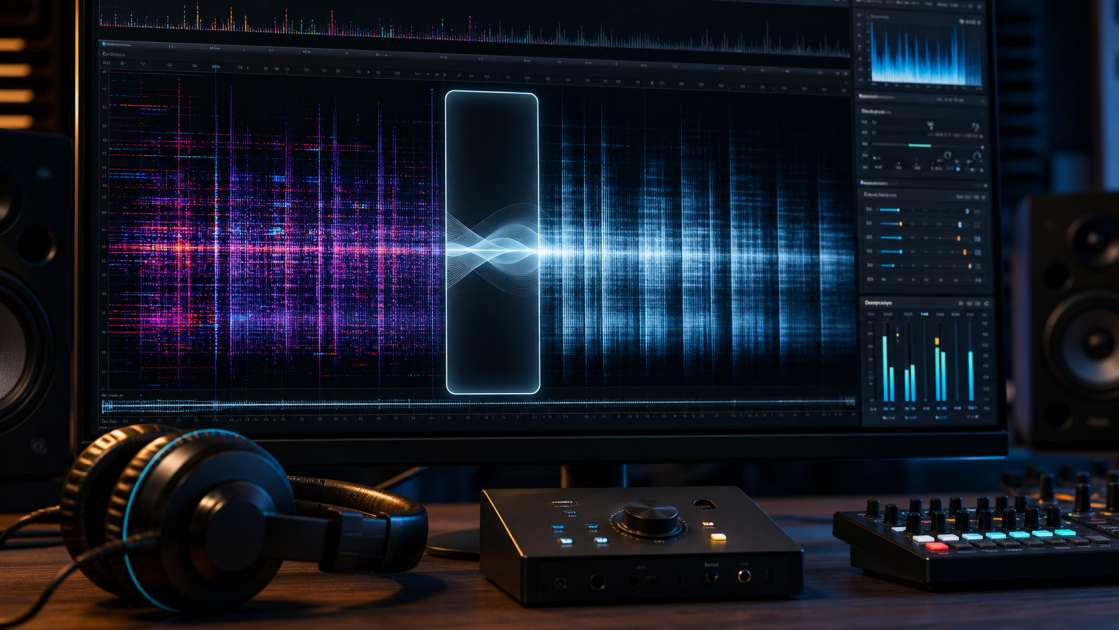
Clicks are short, sharp transients that don't belong to any instrument. Hiss is continuous broadband noise, usually audible in quiet sections. If you see a spectrogram, shimmer looks like a fuzzy spray of energy in the treble, and hiss shows up as a flat noise floor that never goes silent. Write down timestamps for the worst sections. This list becomes your roadmap.
Working With Stems When the Platform Provides Them
Some AI music generators let you export separate vocal, drum, bass, and instrument stems. If you have stems, use them. Fixing a metallic vocal in isolation is infinitely easier than trying to carve around it in a full mix. Load each stem onto its own track, solo the vocal, and apply corrective EQ or de-essing without worrying about collateral damage to the drums.
If the platform doesn't provide stems, you can try an external stem-separation tool like Ultimate Vocal Remover, Demucs, or a commercial service. Quality varies, and separation can introduce new artifacts, particularly around transients. I've had better luck using separated stems for surgical fixes on vocals and then blending the repaired stem back under the original mix at partial volume. That way you reduce the artifact without exposing separation artifacts at full strength.
Subtractive EQ to Tame Harshness and Shimmer
Most AI-generated shimmer lives between 8 and 16 kHz. Open a parametric EQ, sweep a narrow bell boost through that range, and listen for the frequency band that sounds most brittle or glassy. Once you find it, flip the boost to a cut and dial in three to six decibels of reduction. Use a moderate Q so you're not creating a notch filter. The goal is to lower the offense without muffling the entire top end.
Metallic vocals usually cluster around 2.5 to 4 kHz. The same sweep technique works: boost, find the spike, cut. Be conservative. Cutting too much in the presence range makes vocals sound distant and dull. If the vocal has multiple problem zones, use two or three narrow cuts instead of one giant scoop.
For hiss, a gentle high-shelf cut starting around 10 kHz can help, but if the hiss is loud you'll need a dedicated noise-reduction tool. EQ alone won't remove continuous noise without also removing legitimate high-frequency content like cymbals and air.
De-Essing and Vocal Cleanup
AI-generated sibilance often sounds harsher than natural sibilance because the model has learned to exaggerate certain phonemes. A de-esser is a frequency-specific compressor that clamps down on S and T sounds. Most DAWs ship with one. Set the frequency range to 6 to 9 kHz, adjust the threshold until you see gain reduction on every S, and dial in four to eight decibels of reduction.
Listen carefully. Over-processing turns speech into a lisp. If the de-esser removes too much, try splitting the vocal into two bands with a multiband compressor: leave the lows and mids untouched, and apply gentle compression only above 5 kHz. This preserves clarity while controlling harshness.
For nasal or boxy vocals, sweep the midrange with a narrow boost between 400 Hz and 1 kHz. When you find the offending frequency, cut it by two to four decibels. Nasality is often a buildup around 800 to 900 Hz. Box is closer to 400 to 500 Hz.
Spectral Repair for Clicks and Transient Glitches
Clicks are short-duration artifacts that show up as vertical lines in a spectrogram. If you have iZotope RX or a similar spectral editor, you can paint over them and interpolate surrounding audio. This works well for occasional glitches. If every beat has a click, the problem is baked into the generation and spectral repair becomes impractical.
Many AI song cleaner tools include automatic de-click modules. These scan for transients that are too short or too loud compared to their neighbors and attenuate them. The trade-off is that aggressive de-click settings can soften legitimate drum hits. Start with a low sensitivity setting and increase until the clicks disappear without making the snare sound mushy.
For phase smear, check the stereo width. If the track collapses or sounds weird in mono, try a stereo-imaging plugin with a correlation meter. Narrowing the width slightly can reduce smear, though it won't fix a fundamentally broken stereo image. Some AI models generate pseudo-stereo by splitting a mono signal with phase manipulation, which falls apart under scrutiny.
Mastering and Loudness Balancing
Pumping often comes from over-compression during generation. You can't undo it, but you can make it less obvious by applying light multiband compression in mastering. Split the spectrum into three or four bands and compress only the low end, where pumping is most audible. This evens out the kick-drum ducking without squashing the entire mix further.
If the track is already loud, resist the urge to push it louder. AI generators tend to print tracks close to zero decibels, and adding more limiting will exaggerate existing artifacts. Instead, focus on tonal balance. Use a reference track from a commercial release in a similar genre, match the rough spectral curve with broad EQ moves, and apply a soft limiter with no more than one or two decibels of gain reduction. The goal is polish, not volume.
Some engineers add subtle harmonic saturation or tape emulation to glue the mix and mask digital harshness. This can work, but use it sparingly. Heavy saturation on top of existing artifacts creates a layer of distortion that sounds worse than the original shimmer.
Online AI Music Audio Cleaners and Automated Tools
Several online services market themselves as AI music artifact remover solutions. These typically combine noise reduction, de-clicking, and spectral repair into a single upload-and-download workflow. The upside is convenience. The downside is lack of control. You can't hear intermediate steps, and if the automatic settings misfire, you're stuck with the output.
I've tested a handful of these tools on Suno exports. Results vary by track. One service removed most of the hiss but introduced a new metallic ring around 3 kHz. Another did a decent job on shimmer but crushed the drum transients. If you use an automated AI generated music cleaner, keep the original file and do a careful A/B comparison before committing. Look for new problems, not just the reduction of old ones.
Some platforms advertise specific remove Suno artifacts or fix Suno artifacts features. These are usually the same noise-reduction and spectral-repair algorithms repackaged with marketing copy. They can help, but they don't know anything special about Suno's model. The same tools work on audio from Udio, MusicLM, or any other generator.
Mistakes That Make Artifacts Worse
The biggest mistake is stacking too many corrective plugins. Each process introduces a small amount of degradation. If you chain a noise reducer, a de-esser, a multiband compressor, a spectral editor, and two EQs, you'll hear the cumulative smearing even if each plugin is set conservatively. Pick the two or three most effective moves and stop.
Another common error is fixing artifacts in isolation and ignoring how the changes affect the whole mix. You might remove shimmer from the vocal and discover that the instrumental backing is now too bright by comparison. Always listen to the full mix after every edit, and tweak the other elements to match.
Normalizing or heavy limiting after artifact removal often brings the problems back to the surface. If you've successfully buried a hissy noise floor six decibels down, then normalize the track to peak at zero, the hiss comes right back up with everything else. Leave headroom and use gentle final limiting.
Finally, don't expect perfection. Some AI-generated tracks have artifacts woven into the harmonic content. If the vocal is metallic because the model learned resonance in the wrong frequency range, EQ will only reduce the symptom. The tone itself is still synthetic. At a certain point you have to decide whether the track is usable or whether you need to regenerate with a different prompt or seed.
Comparing Manual Editing, Plugins, and Online Services
| Approach | Best For | Limitations |
| Manual EQ and dynamics in a DAW | Targeted fixes on specific frequency ranges, full control over each step | Time-consuming, requires experience and critical listening |
| Spectral editing plugins like iZotope RX | Surgical removal of clicks, hiss, and isolated transient glitches | Expensive, steep learning curve, can introduce smearing if overused |
| Automated online AI cleaners | Quick results for users without a DAW or audio experience | No control over parameters, inconsistent results, risk of new artifacts |
Frequently Asked Questions
Can I completely remove all artifacts from AI-generated music? No. Some artifacts are encoded into the audio at the model level and cannot be separated without destroying the underlying musical content. You can reduce audible harshness and improve balance, but you won't turn a flawed AI track into a studio recording.
Which artifacts are easiest to fix? Hiss, clicks, and high-frequency shimmer respond well to conventional noise reduction, de-clicking, and subtractive EQ. Pumping and phase smear are harder because they involve dynamics and stereo imaging baked into the mix.
Do I need expensive plugins? Not necessarily. Basic EQ, compression, and de-essing are included in most free DAWs. Spectral repair is easier with a tool like RX, but you can accomplish a lot with careful EQ and multiband dynamics.
Will cleaning artifacts change the loudness? Subtractive EQ and de-essing reduce peak levels, so the track may sound quieter. You can compensate with a limiter at the mastering stage, but avoid pushing too hard or you'll reintroduce pumping.
Can I use these techniques on AI voice or podcast audio? Yes. The same spectral repair, noise reduction, and de-essing methods apply to any AI-generated audio. Voice often has fewer complex harmonics than music, so artifacts are sometimes easier to isolate and remove.
Is there a difference between fixing Suno, Udio, or other platforms? The artifact types are similar across platforms, though the specific frequency ranges and severity vary. Suno tracks often have more high-frequency shimmer, while other models may produce more midrange harshness. The same toolbox works for all of them.